
Connect Claude, Cursor or Codex
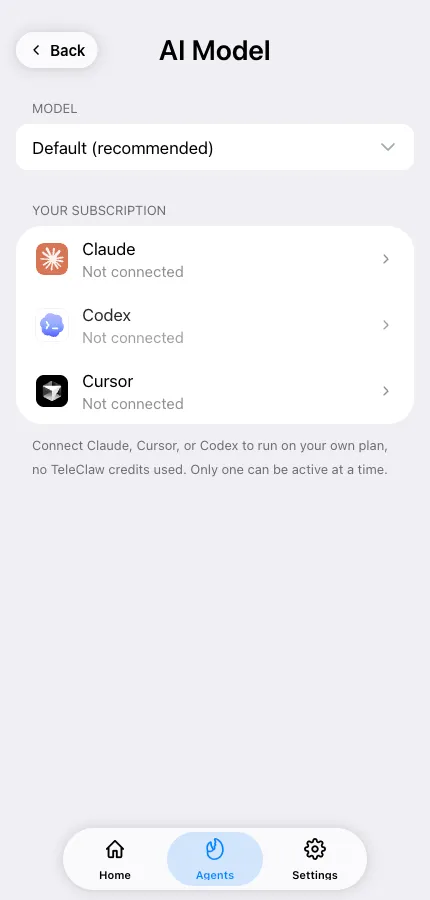
Open the agent → AI Model (under General). The screen lists the models available to the agent — leave Default (recommended) or pin one — and below it you can connect one of these subscriptions at a time:
| Harness | You need | Runs as |
|---|---|---|
| Claude | A Claude Pro or Max subscription | Claude Code in the agent’s container |
| Cursor | A Cursor account | Cursor CLI in the agent’s container |
| Codex | A ChatGPT account | OpenAI Codex in the agent’s container |
While a harness is connected, the model runs on your plan, so TeleClaw credits are not spent on it. The container the harness runs in still costs a small compute fee per turn, paid in credits, so your agent needs a credit balance to run. Connecting a harness requires TeleClaw Pro.
Connect Claude
Section titled “Connect Claude”- Tap Authorize with Claude Code — claude.ai opens.
- Approve the request. Anthropic shows an authorization code.
- Copy the code back into the Authorization code field and confirm.
Connect Cursor
Section titled “Connect Cursor”Tap Authorize with Cursor, finish signing in on the page that opens. The screen updates by itself once Cursor confirms — you don’t need to paste anything.
Connect Codex
Section titled “Connect Codex”- Tap Authorize with ChatGPT. TeleClaw shows a device code.
- Copy it, sign in to ChatGPT and enter the code.
- The screen updates automatically once ChatGPT confirms.
Model choice, switching and disconnecting
Section titled “Model choice, switching and disconnecting”Under Model you can leave Default (recommended) or pin a specific model the harness offers.
Only one harness can be active. Disconnect the current one before connecting another; disconnecting puts the agent back on TeleClaw’s models and credits. If an authorization times out, start over — the codes are short-lived.