
Connect apps and tools
Connectors
Section titled “Connectors”Open the agent → Connectors → New Connector, search the service, tap Connect and authorize it. Once the status shows Connected, the agent can use it: read email, create calendar events, post to Slack, open issues on GitHub, write to Notion.
Statuses you may see: Pending (authorization not finished — tap to authorize), Failed (the provider rejected it, reconnect), Connected.
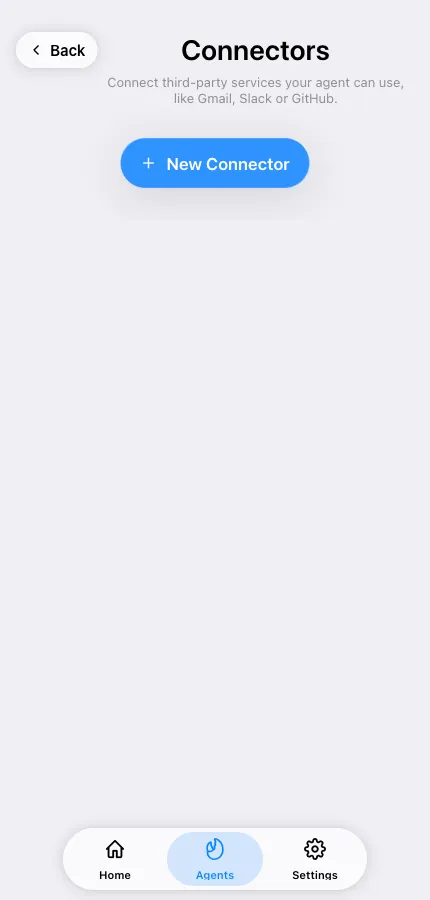
Disconnect revokes the agent’s access. Do that from the connector row.
Passwords & Keys
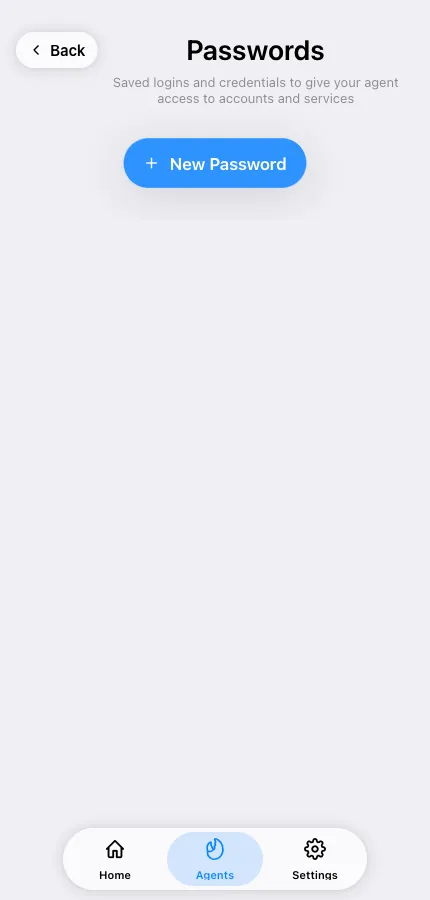
Section titled “Passwords & Keys”For services without a connector, save credentials in Passwords & Keys. They’re stored encrypted and the agent uses them when a task needs them. Prefer a connector when one exists — it can be revoked from the provider’s side without changing your password.
Custom MCP servers
Section titled “Custom MCP servers”MCP (Model Context Protocol) servers add whole tool sets to your agent. Open the agent’s MCP servers screen, which has two tabs:
- Built-in tools — the MCP servers TeleClaw provides. Toggle what the agent may use.
- Custom MCP servers — Add MCP Server, then choose the transport:
- HTTP or SSE — remote servers. Give the URL, plus headers if the server needs auth. Servers that support OAuth show an Authorize button.
- STDIO — a command that runs inside the agent’s container, with arguments and environment variables.
Credentials can be typed inline or pulled from a vault account you saved in Passwords & Keys, so the same secret isn’t pasted into several places.
Each server can be enabled or disabled without deleting it. If a server shows Unavailable, the agent couldn’t reach it — check the URL and its auth.